Documentation Pages
Quick Start & Deployment
Step-by-step instructions to configure, install, and run the WaveGo Whisper-bot platform on any compatible hardware.
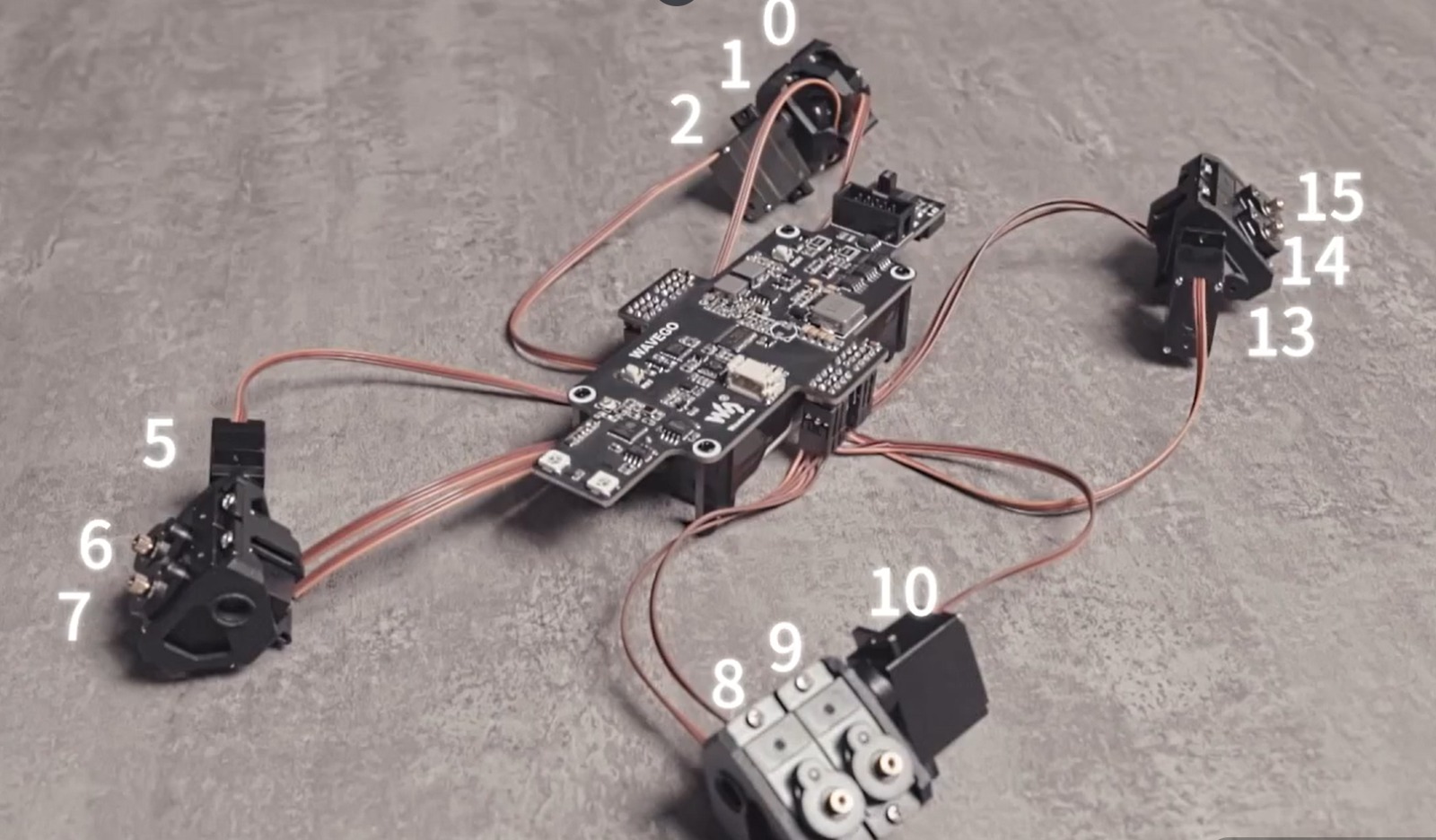
🤖 WaveGo Hardware Platform
The Whisper Bot is built on top of the Waveshare WaveGo Quadruped Robot. It interfaces a Raspberry Pi controller with the robot's ESP32 locomotion board.
Circuit Connection Schematic:
💿 OS Flashing & Setup
Prepare your Raspberry Pi's bootable SD card/SSD with one of the following recommended setups:
📱 Mobile Controller App
Whisper-bot features a companion Flutter-based mobile dashboard for real-time video telemetry, drawing inputs for the LeNet-5 CNN digit recognizer, local Gemma3 chat interface, and bionic motor status polling.
Download Android Client
Download the pre-compiled production release APK directly to your Android device:
⬇️ Download app-release.apkBuild output size: ~57.0 MB • Requires Android 8.0 (Oreo) or higher.
📦 Automated Installer Setup
The project includes an install.sh script that updates packages, configures groups, installs python requirements, and downloads public models.
Shell Installation Commands:
# 1. Clone the project repository
git clone https://github.com/Abbilaash/WaveGo.git
cd WaveGo/whisper-bot

# 2. Grant execution permissions and run the installer
chmod +x install.sh
./install.sh
⚠️ Important permission reload required:
The script adds the active user to the dialout group to access the serial interface. You must log out and back in, reboot, or run su - $USER for permissions to take effect.
⚙️ systemd Background Automation
Register the server as a background daemon to launch automatically when the Raspberry Pi boots:
Service Setup Commands:
# 1. Copy the systemd service descriptor to the configuration folder
sudo cp whisper-bot.service /etc/systemd/system/

# 2. Reload the systemd daemon to recognize the new configuration
sudo systemctl daemon-reload

# 3. Enable the service to run on startup
sudo systemctl enable whisper-bot.service

# 4. Start the service manually
sudo systemctl start whisper-bot.service
Useful logs and status commands:
# Inspect the status and execution state of the bot
sudo systemctl status whisper-bot.service

# View live execution logs using journalctl
journalctl -u whisper-bot.service -f